Navigating Repositories
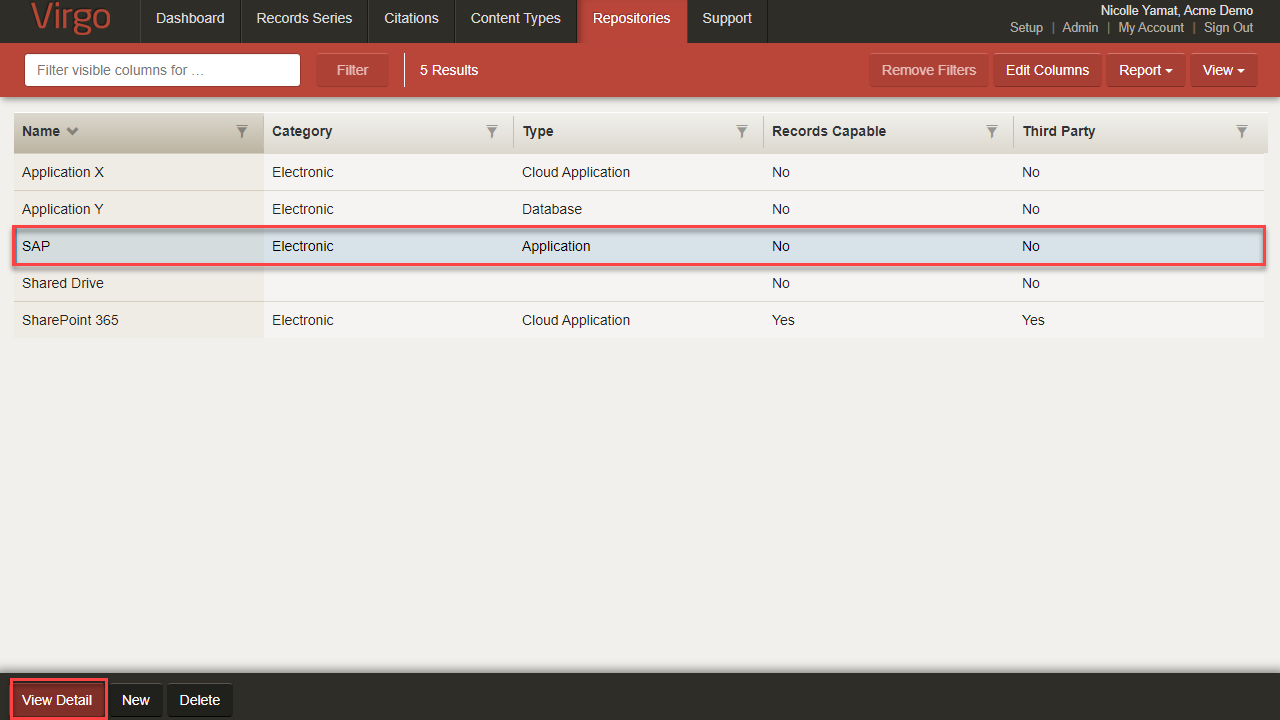
To view an example of the Repositories tab, hover your cursor over the image.
 This Knowledge Base topic includes the following sections:
 Video Tutorial
You will learn how to create an inventory of your repositories and content using the Content Types tab and the Repositories tab. You will also learn how to export this inventory to a spreadsheet or other document for future reference.
Length: 4 minutes
Viewing Repository Details
Access Unify | Lifecycle lets you track which repositories are active in the organization, what content they are responsible to store, and whether they are holding the official record or a copy. You can see which retention rules apply to each repository and what mixture of privacy and security policies are in play. You can also use this information to manage your implementations and realign content in repositories for easier, more consistent management.
- To view the details of a repository or edit a repository, select the repository, and click View Detail.
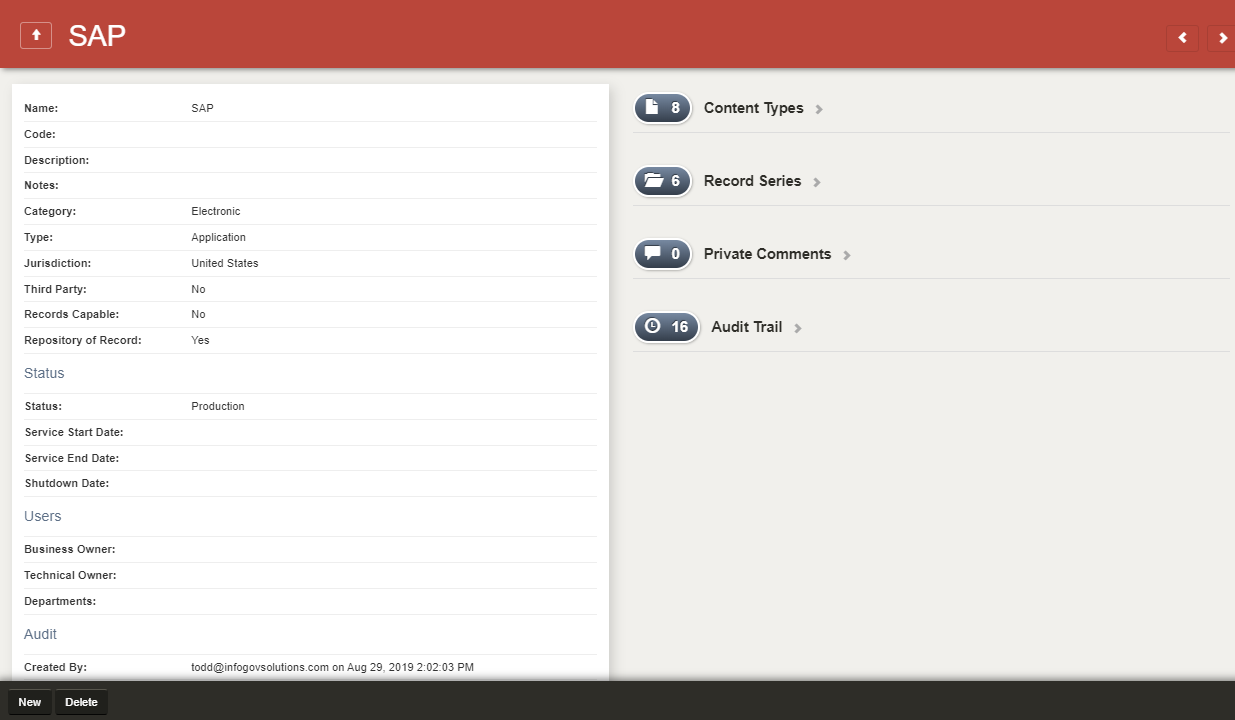
To view an example of a Repository Details page, hover your cursor over the image.
-
The left side of the Repository Details page displays information about the repository.
-
The right side of the Repository Details page displays information about content stored in the repository, including the Content Types the repository stores.
Repository Details Page Features
The table below describes the Repository Details page fields and sections.
| Field/Section | Description |
|---|---|
|
Name |
The Name field is the name of the repository. |
|
Code |
The Code field is a short name or system ID for the repository. |
|
Description |
The Description field describes any relevant details about the repository. |
|
Notes |
The Notes field records historical or other qualifying information. |
|
Category |
The Category field indicates whether the repository is electronic or physical. |
|
Type |
The Type field is where you can select whether the repository is an application, database, email, file share, etc. |
|
Jurisdictions |
The Jurisdictions field identifies where the repository is located. |
|
Third Party |
The Third Party field indicates if the repository is managed by an outside vendor. |
|
Legal Hold |
The Legal Hold field indicates if the repository is subject to a legal hold. |
|
Records Capable |
The Records Capable field indicates if the repository can manage records. For example, if a repository is Records Capable, the records stored in the repository could be eligible for destruction after 20 years as long as there's no legal holds. |
|
Repository of Record |
The Repository of Record field indicates if the repository is the primary storage location for original records. |
|
Status |
The Status field indicates where the repository is in its lifecycle. |
|
Service Start Date |
The Service Start Date field displays the date the repository was placed in normal service. |
|
Service End Date |
The Service End Date field displays the date the repository was removed from normal service. |
|
Shutdown Date |
The Shutdown Date field displays the date the repository was completely decommissioned and no longer available. |
|
Business Owner |
The Business Owner field is a person, title, or office responsible for the business purposes of the repository. The list of owners is customizable. You can click the magnifying glass icon to perform a Deep Search. The Deep Search page displays all the potential field values and some basic information for each value. And in the Search field, you can enter a value to filter the results. Select the correct value and click Submit. The field is populated with the new value. |
|
Technical Owner |
The Technical Owner field is a person, title, or office that is responsible for the operation and maintenance of the repository. The list of owners is customizable. You can click the magnifying glass icon to perform a Deep Search. The Deep Search page displays all the potential field values and some basic information for each value. And in the Search field, you can enter a value to filter the results. Select the correct value and click Submit. The field is populated with the new value. |
|
Departments |
The Departments field displays the business departments (of other organization units) who use the repository. |
|
Content Types |
The Content Types section displays the content types mapped to this repository. The repository stores these types of records. |
|
Record Series |
The Record Series section displays the record series stored in the repository. |
|
Private Comments |
The Private Comments section provides a secure place for team discussions about the repository.
|
|
Audit Trail |
The Audit Trail displays changes to the repository information, including the date, the user, and the action. |
Administrators can add and update metadata fields on the Setup tab.
For more information about the fields, the glossary includes common field names, definitions, and examples.
Data Mapping
Access Unify | Lifecycle lets you identify the repositories used for each content type. You can also identify which of the repositories holds the official record. Alternately, select a repository and add the content types under management, also with the option to identify which content types represent the official record in this repository.
The data mapping goes both ways: you can either map content types to a repository or you can map a repository to a content type. You can also specify the Record Series for the repository.
- Go into Content Type detail screen.
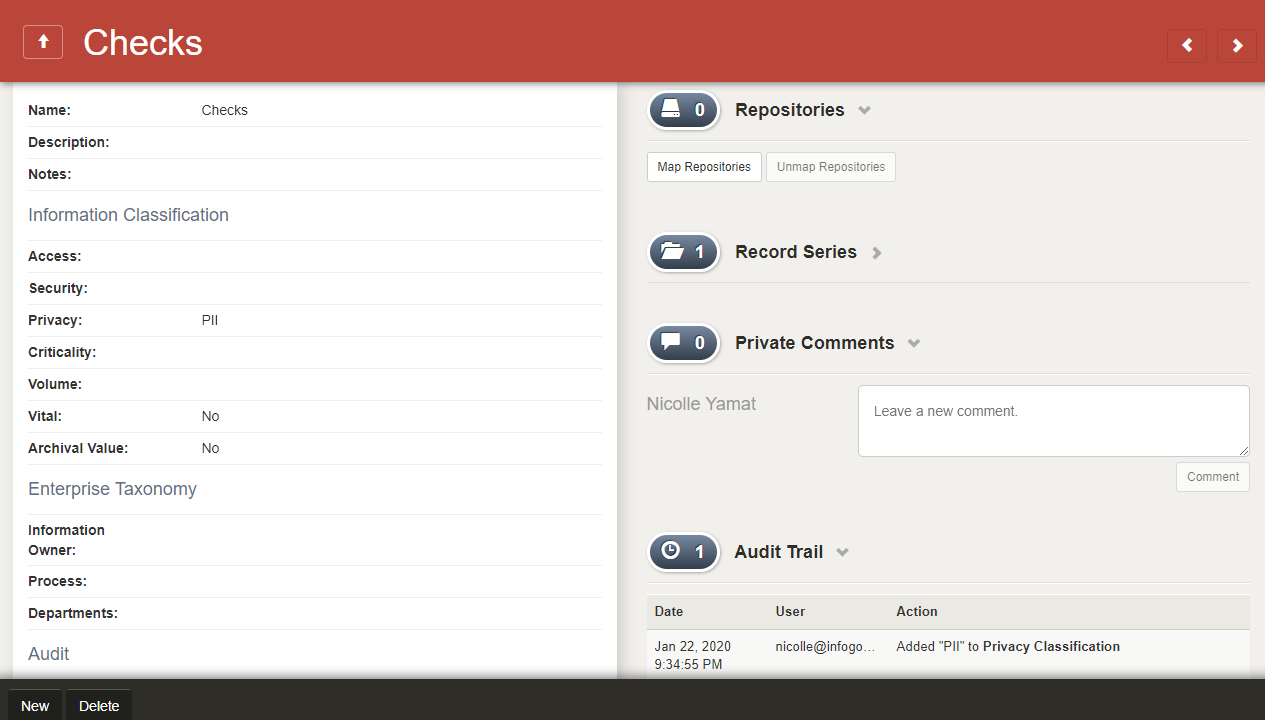
To view an example of a content type, hover your cursor over the image.
- Add the repositories used to store this content.
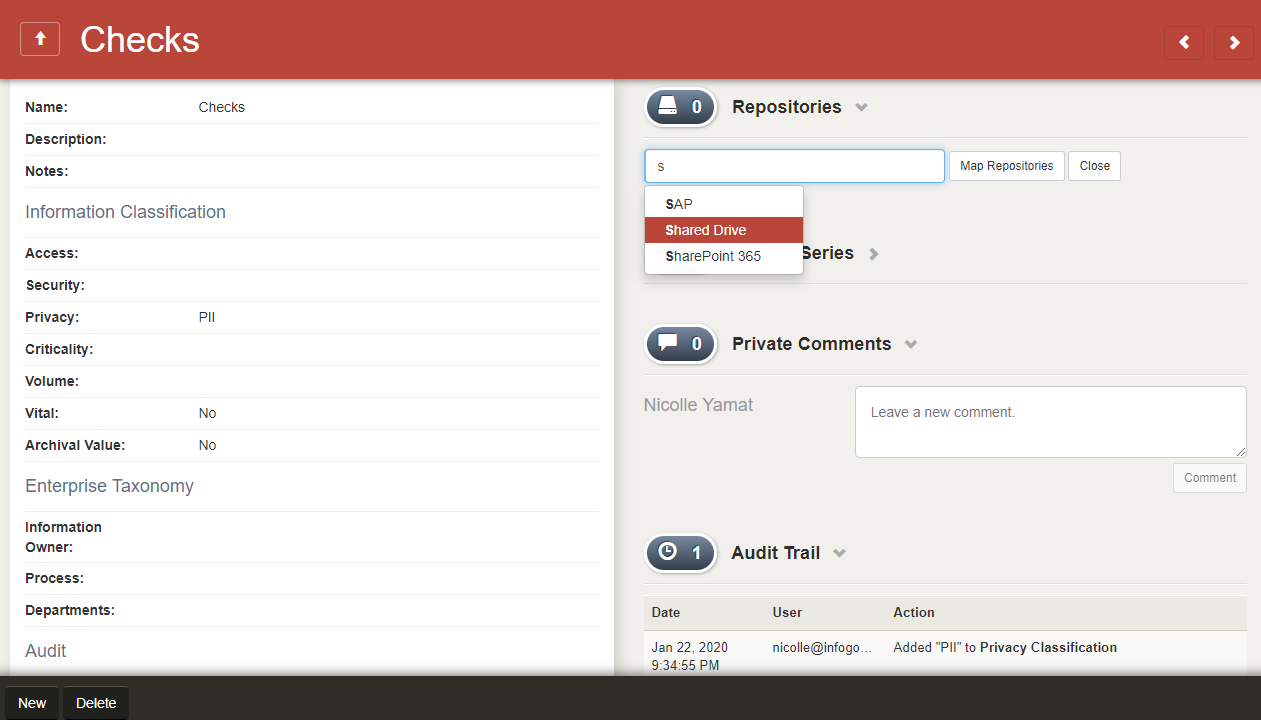
To view an example of adding a repository, hover your cursor over the image.
- Open the Repository detail screen.
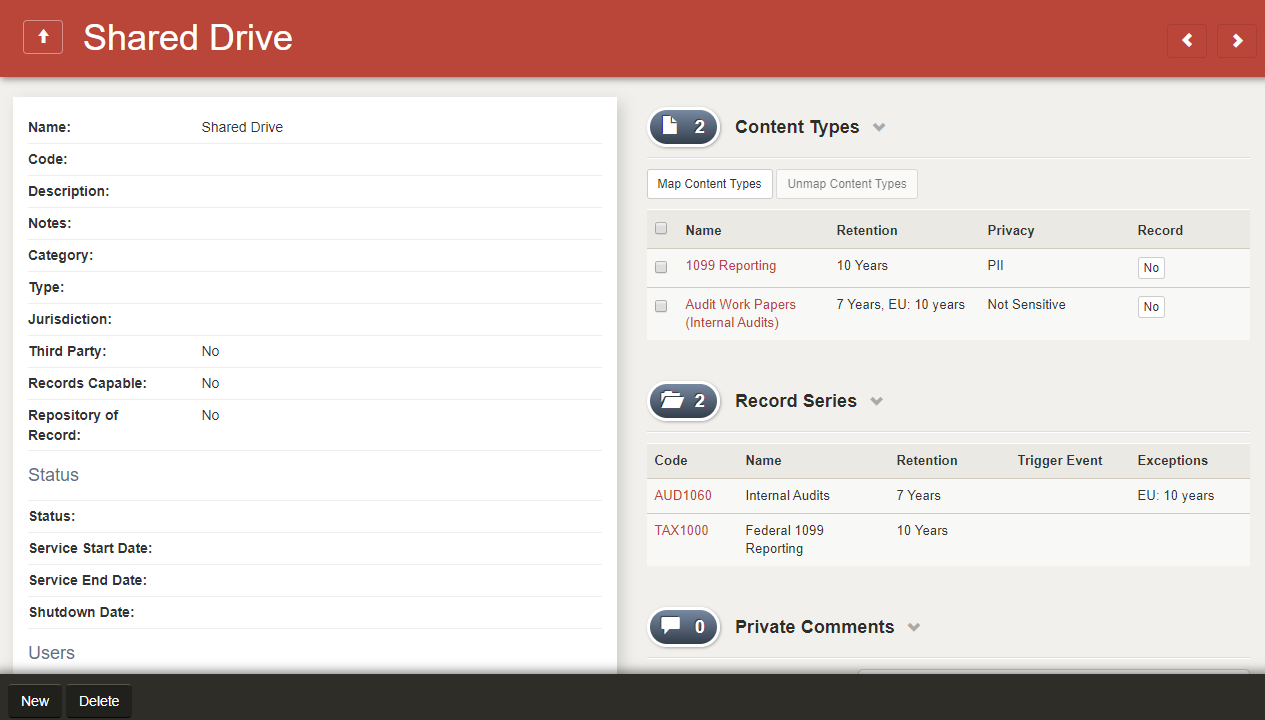
To view an example of a repository, hover your cursor over the image.
- Add the content types being stored.
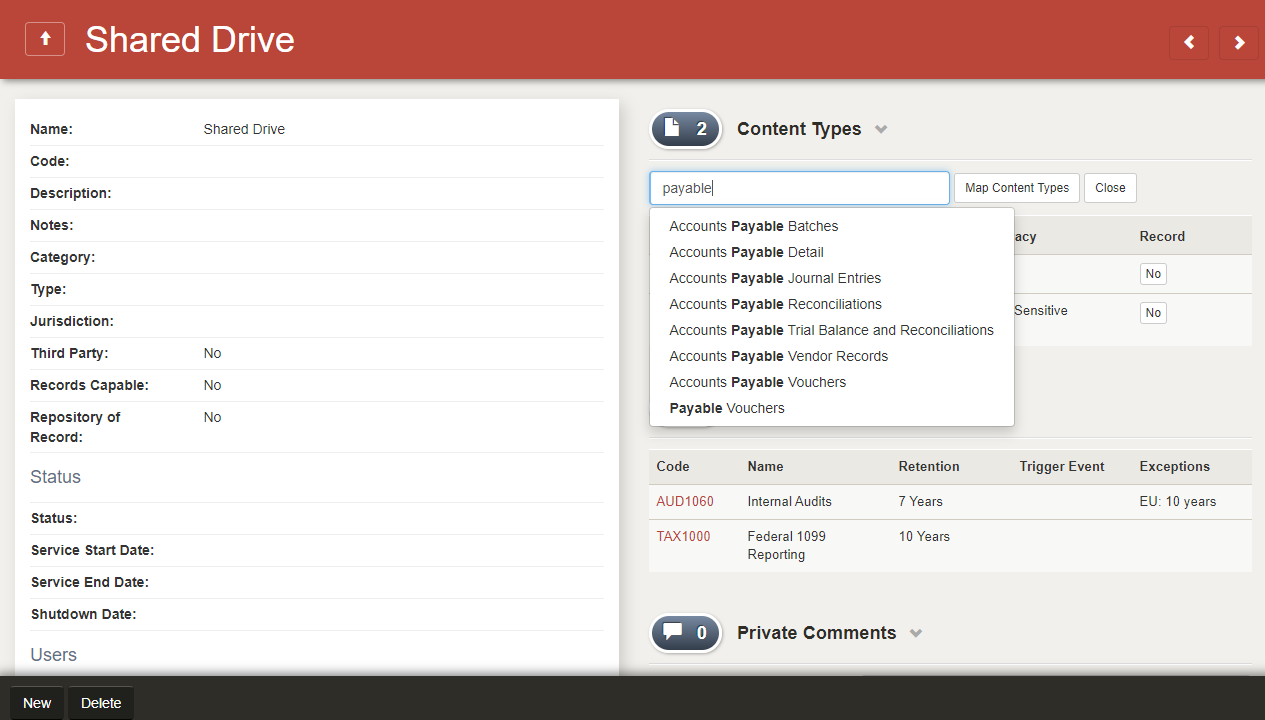
To view an example of adding a content type, hover your cursor over the image.
Repositories Tab Navigation Features
Consistent with other tabs in Access Unify | Lifecycle, on the Repositories tab you can filter and sort information, show and hide columns, generate reports, and customize views for your specific needs.
- To return to the Repositories tab, you can click the up arrow.
- You can collapse and expand each section.
- You can navigate through the detail pages by using the left and right arrows.